Building pipelines with Microsoft Dynamics 365 Reader
You can read data from Microsoft Dynamics 365 using the Microsoft Dynamics 365 Reader and write to any target supported by Striim.
We recommend that you create a single Striim application using the Reader in Automated mode. In this mode, the Reader performs an initial load of existing data and automatically transitions to continuous incremental replication after the initial load has completed. For foundational concepts about pipeline phases, see Pipelines.
Reader modes
The Microsoft Dynamics 365 Reader supports three modes.
Mode | Description | When to use | Wizard | Flow Designer, TQL, API |
|---|---|---|---|---|
Automated (recommended) | Performs an initial load of the selected entities and then automatically transitions to continuous incremental replication without requiring manual intervention. | Use this mode for most pipelines, especially when you are building a new pipeline. | Yes | Yes |
Initial Load | Performs a one-time snapshot of the selected entities and does not continue with continuous incremental replication after completion. | Use this mode when you need to run the initial load separately from incremental replication or to perform an ad hoc resynchronization of the source data. | No | Yes |
Incremental Load | Continuously replicates new or updated records using a configured watermark field and polling interval. | Use this mode if the initial load has already been completed and you want to replicate only new or updated data going forward. | No | Yes |
Two ways to build a Microsoft Dynamics 365 pipeline
Before creating a pipeline, complete the required setup and configuration steps in Microsoft Dynamics 365 as described in Initial setup.
You can build pipelines in one of two ways: using the pipeline wizard (recommended), or manually using Flow Designer, TQL, or the REST API.
Using the pipeline wizard (recommended)
If you are building near-real-time pipelines from Microsoft Dynamics 365 to supported targets, we recommend using a wizard from the Create App page to build an application that reads from Microsoft Dynamics 365. The wizard automatically:
Creates a single application using the Reader in Automated mode.
Configures both initial load and continuous incremental replication.
Creates the target schema and tables that match the selected entities.
Copies existing data during the initial load phase.
Automatically transitions to incremental replication when the initial load completes.
Configures watermark tracking and polling intervals.
The wizard simplifies setup, promotes best practices, and reduces configuration errors.
Creating a pipeline manually
If your use case or organizational policies do not allow the use of the pipeline wizard (for example, you are using a CI/CD system to move configurations to production) or if the wizards do not support your target, you can manually create and configure an application using Flow Designer, TQL, or the Striim REST API.
When creating a pipeline manually, set the Reader's Mode property to Automated. This allows a single application to handle both initial load and continuous replication without requiring changes between phases. You may also use the Reader in Initial Load or Incremental Load mode when your architecture requires separate applications for each phase.
Configuration guidelines
When configuring the Microsoft Dynamics 365 Reader, follow these best practices.
Set the Reader mode. Choose the mode that aligns with your use case. We recommend that you start with Automated mode.
Identify the Incremental Load Marker. Before performing the initial load, identify a reliable, monotonically increasing field for each entity (for example, a last-modified timestamp or an auto-incrementing ID). In the Incremental Load Marker property, specify this using the format
<entity_name>=<field_name>. If all entities share the same marker field, you can simply specify<field_name>. This field is used as the watermark for incremental replication. If an entity does not have such a field, the system performs a full table copy during each incremental sync.Configure schema creation. If the required schemas do not already exist on the target and you want Striim to create them automatically, enable Migrate Schema. If any tables from the source schema already exist on the target, this operation will fail. If you prefer not to have Striim create target schemas, pre-create target tables using native or third-party utilities and ensure that the target schema is compatible with the source schema. Leave Migrate Schema disabled in this case.
Configure continuous replication. Set the Incremental Load Marker field and the Polling Interval. Configure the target for upsert semantics using appropriate key columns.
Set Start Position (optional). If you need to resume replication from a specific point, provide the last successful watermark value as the Start Position.
Create a Dynamics 365 Reader application using the Flow Designer
This procedure outlines how to use Striim's Flow Designer to build and configure data pipelines. Flow Designer enables you to visually create applications with minimal or no coding.
Go to the Apps page in the Striim UI and click Start from scratch.
Provide the Name and Namespace for your app. The namespace helps organize related apps.
In the component section, expand Sources, and enter a keyword such as Dynamics 365 Reader in the search field to filter available sources.
Select the desired source (Microsoft Dynamics 365).
In the properties panel, provide the properties for the reader. Set Mode to Automated to perform initial load followed by continuous incremental replication.
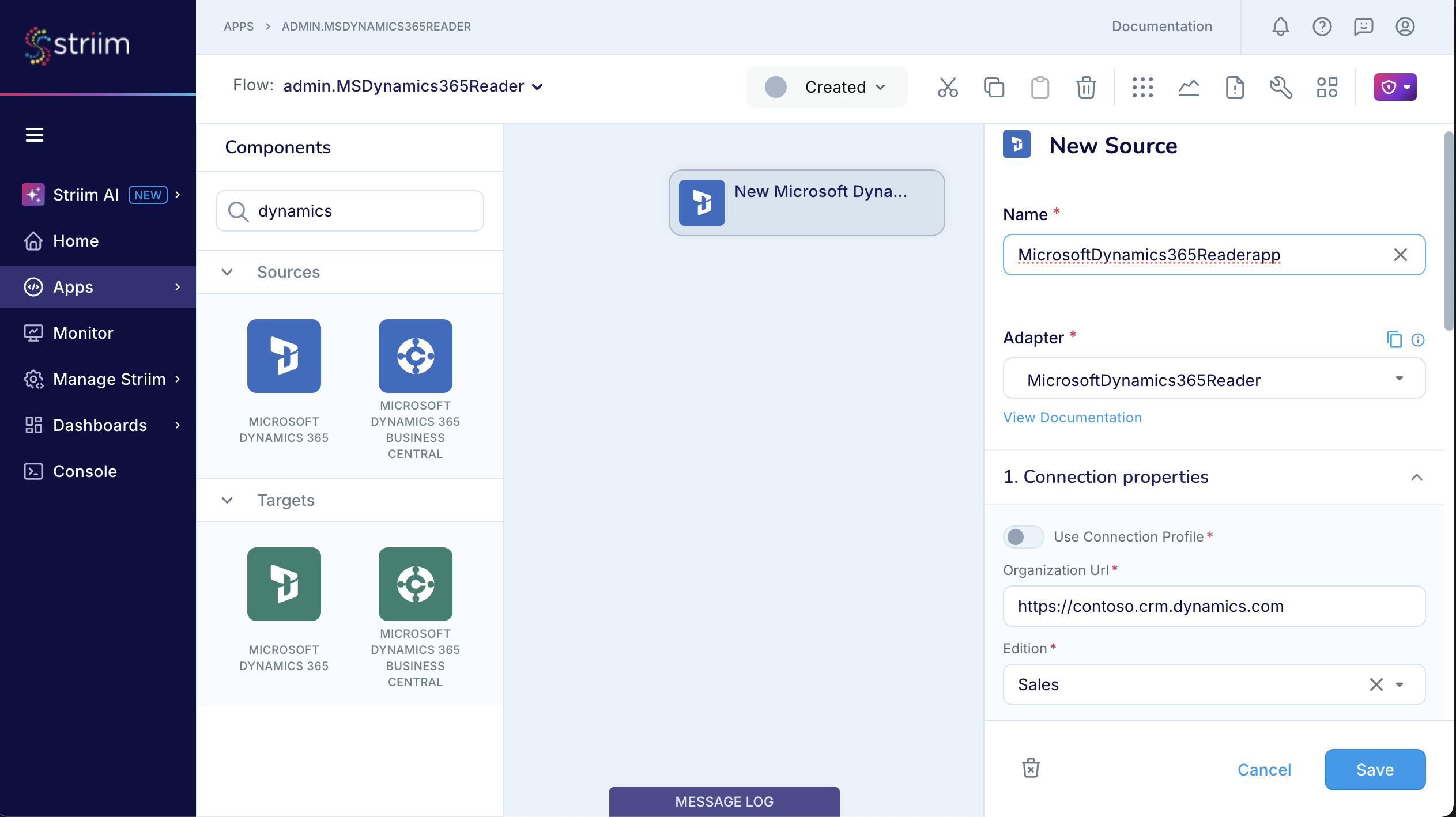
Click Save to complete the properties configuration.
You can drag and drop processors, enrichers, and targets to complete your pipeline logic.
Once done, deploy and start the application to begin data flow.
Create a Dynamics 365 Reader application using TQL
The following sample TQL uses Striim's Dynamics 365 Reader to read from the Sales Edition. Note that Mode is set to Automated, which performs initial load and then automatically transitions to incremental replication.
 CREATE SOURCE SourceName USING Global.MicrosoftDynamics365Reader (
    PollingInterval: '5m',
    ClientSecret: '<ClientSecret>',
    RefreshToken: '<RefreshToken>',
    TenantId: 'TenantID',
    AdfsServer: '',
    startPosition: '%=-1',
    Tables: '%',
    ClientId: 'ClientId',
    ConnectionPoolSize: 20,
    connectionProfileName: '',
    FetchSize: 5000,
    ConnectionTimeout: '300',
    Edition: 'Sales',
    Mode: 'Automated',
    useConnectionProfile: false,
    IncrementalLoadMarker: 'ModifiedOn',
    OrganizationUrl: 'URL',
    MigrateSchema: true,
    ThreadPoolCount: 10
  )
  OUTPUT TO DataStream;